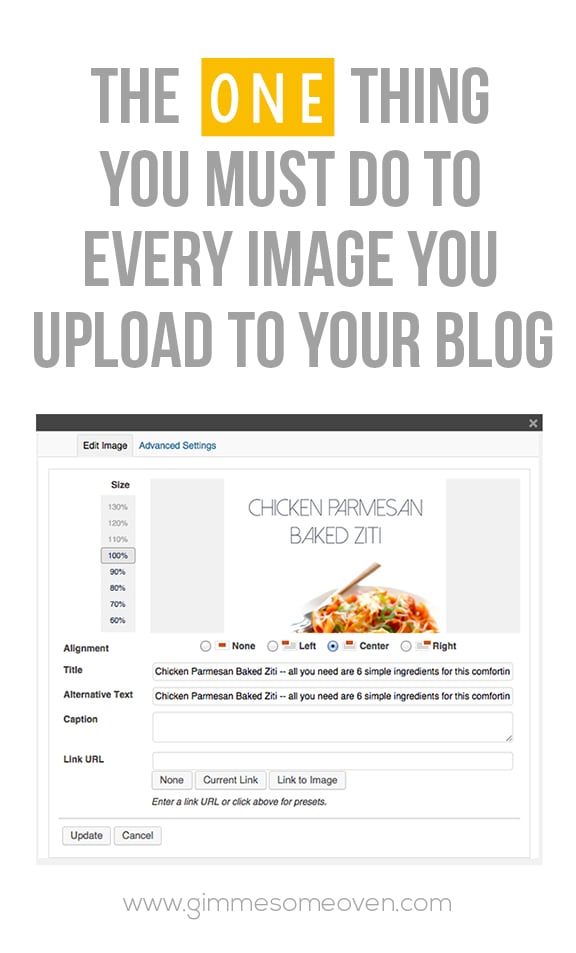
This one may seem like a no-brainer for those of you bloggers who use Pinterest every single day. But occasionally I still see new bloggers forgetting to take this crucial step with uploading photos that will literally make all the difference in optimizing your photos on Pinterest. Plus, as a bonus, it also helps with SEO.
The thing??
Titling your photos. Here’s how to do it:
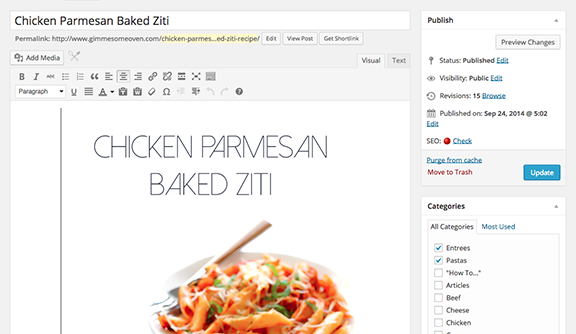
1. Begin by opening up your post and finding the image you want to title.
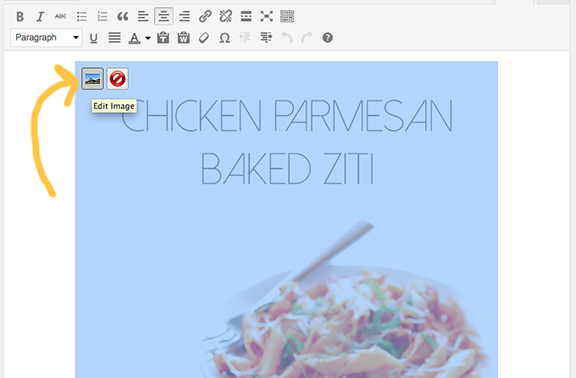
2. Click on it, and then click on the “Edit Image” button (the little icon with the mountains) that pops up.
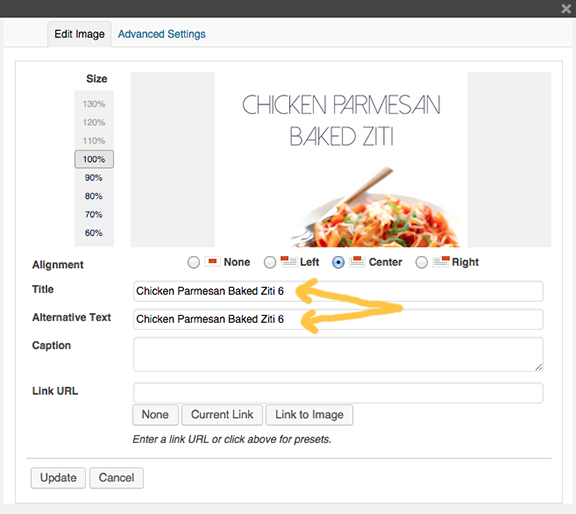
3. Whatever name you gave the image when saving it on your computer will now pop up.
(Another big tip — save your images with the names of the post! Not IMG_3928, or however your camera wants to name it. This will majorly help with SEO.)
Still, whatever image name you have here is what you want to change, because this is the text that will show up when people go to pin your image.
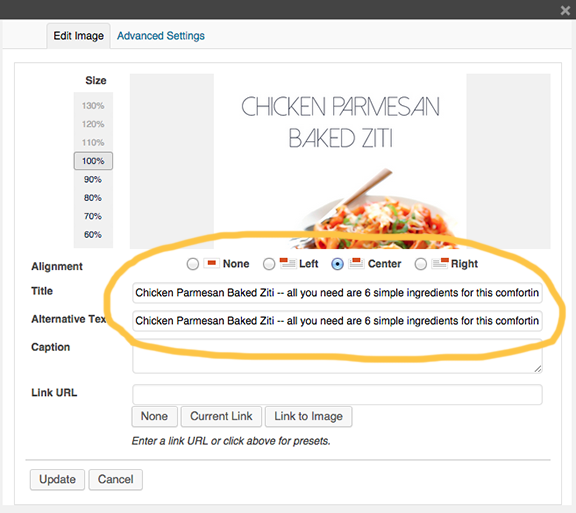
4. Ideally, the experts say that your title (and alt text) should have around 200 characters to be best optimized for Pinterest. I recommend including:
- The title of your image/post (even if you use Rich Pins, those titles usually don’t show up on all mobile devices)
- Some kind of description
- Your URL or Pinterest handle (I love the URLs because they are live links that people can click on within Pinterest)
- Hashtags (optional, and I recommend only using 1-3)
Then copy whatever text you included, and hit “update”. Then go and paste the text on all other photos that you have on that page. (Or change them each to include whatever text you want.)
You can also do this step when uploading photos to WordPress in the first place.
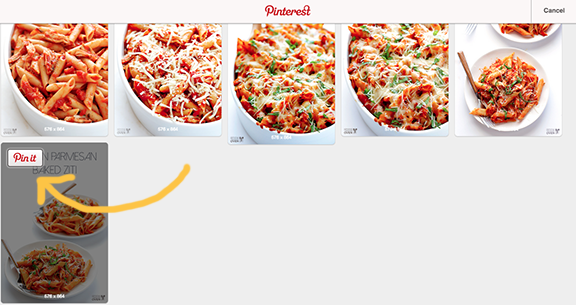
5. So now, whenever someone goes to pin your image on Pinterest…
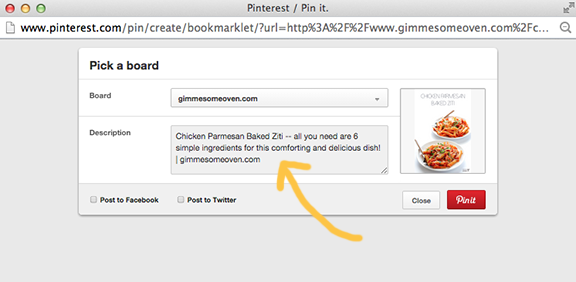
6. …your sweet new title text will show up in the description. So much better than “Chicken Parmesan Baked Ziti”, yes??
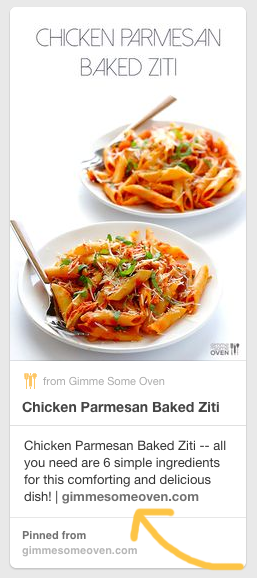
7. Of course, any pinner has the option of typing in whatever text they want to replace yours. But as someone who uses Pinterest day in and day out, I can confidently say that the vast majority of pinners never bother to take the time to rename your image.
So decide what you want to say, and title that text baby!
(And by the way, this Chicken Parmesan Baked Ziti will knock your socks off. Give it a try!)
Good tip. Should be done on websites also. If you don’t use content management, because it sucks, all can be done in HTML.
I am guilty of not paying much attention to the image title. I hust end up writing a 5-6 words titale for the image, and that’s what is shown as the description when it is pinned. I need to take care of that from now on.
Thank you for this tip.
You’re welcome — we’re glad you found it helpful! :)
Thank you so much! I am a new blogger, and while this may seem like a simple thing for most people, I did not realize how important this one step is. Love your blog!!
Thanks for your sweet words — we’re happy you found this helpful! And welcome to the world of blogging! :)
I am loving pinterest each day more when i get more and more information about it. Providing ALT and description in your image for pinterest is one important option that i will consider while pinning my own posts. Thanks for helping out newbies.
We’re glad you found this helpful Marjan! :)
Thanks for the great advice! As a Pinterest newbie I have been a bit overwhelmed. This will definitely go on my to do list for new photos.
We’re glad you found this helpful Bill!
I never realized that if you included the URL in the title, it would show up as a live link! Thanks for the great tip!
Great post! Awesome idea. I am just getting started and I appreciate the newbie advice.
Thanks Lori — we’re glad you found this helpful! :)
Thank you for this great post! I’m trying to soak up all the knowledge I can to help me with my blog. This was helpful and easy to understand. -Janelle Jones
You’re very welcome Janelle — we’re glad to hear this was helpful to you! :)
Love this tip!!! Now off to do it to my photos.
Thanks Barbara—we’re glad you found it helpful! :)
Thank you so much for this tip. Very helpful.
You’re welcome Vickie — we’re glad you found this helpful! :)